Qwen Image 3 AI Image Generator

Create product and campaign concepts with Qwen Image 3 in Image3. Use prompts or supported reference inputs and review output options for the selected provider.

Prompt Templates
Explore more prompts
Cobalt-blue glass perfume bottle on a pale stone pedestal in a sunlit studio
Prompt Templates

Model guide

Qwen Image 3: generation and editing capabilities

Review supported inputs, output settings, and practical limits before using a draft.

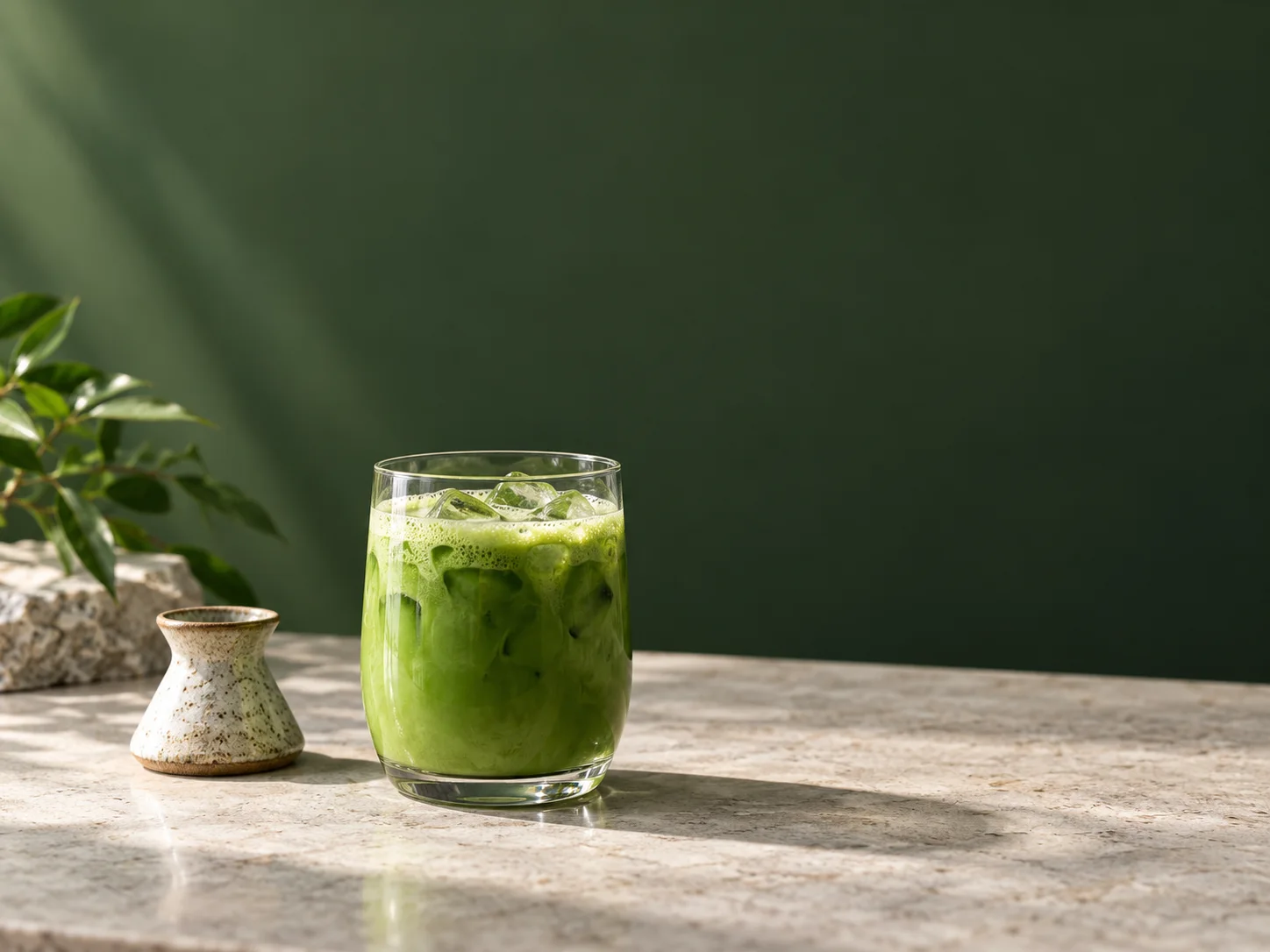
Matcha drink campaign concept with green tea and restrained studio styling
Original illustrative concept visual generated for this Qwen Image 3 page; it is not a verified model output.

Prompting

Qwen Image 3 image creation

Describe the subject, setting, composition, and lighting to create a new image with Qwen Image 3.

  • Example direction: Describe the focal subject, materials, layout, lighting, and any text to exclude. For an edit, separate the details to preserve from the requested changes.
  • Example prompt: “Design a clean matcha drink campaign concept: a clear glass with vivid green tea and a small ceramic whisk rest on a pale stone counter, soft side light, dark leaf-green backdrop, generous empty space above, no lettering or logos.”

Reference editing

Guide edits with image references

For supported image-to-image requests, add up to three reference images and state which subject features to retain and which scene details to change. Reference availability and request fields can vary by provider. The model may reinterpret details, so review the result before using it in a finished asset.

  • Example edit: State which details to preserve and which parts to change, then inspect the output against the source image.
  • Image3 routes requests through the selected API provider, with KIE as the default. Model names and trademarks belong to their respective owners; this page describes the Image3 workflow and is not an official provider product page.

Output settings

Choose supported output settings

With KIE selected, Qwen Image 3 supports prompt-to-image and image-to-image workflows with documented output sizing. fal, APIMart, and EvoLink use their own supported fields; the generator filters settings to the active provider.

  • With KIE selected, Qwen Image 3 supports prompt-to-image and image-to-image workflows with documented output sizing. fal, APIMart, and EvoLink use their own supported fields; the generator filters settings to the active provider.
  • Image3 connects Qwen Image 3 through KIE, fal, APIMart, and EvoLink. Available output controls vary by provider.

Iteration

Refine the visual direction

Change one part of the prompt at a time to compare composition, color, lighting, or material choices across drafts.

  • Generated text, identity, materials, and fine details may differ from the prompt or source image. Review each output before publishing or using it in production.
  • Refine one visual decision at a time to make changes easier to evaluate.

From brief to reviewed image

How to use Qwen Image 3

Use a focused prompt for product concepts, visual drafts, and edits guided by a small set of reference images. and confirm the supported inputs before generation.

  1. 01

    Choose the model

    Open the image workspace with this model selected. It is suited to product concepts, visual drafts, and edits guided by a small set of reference images.

  2. 02

    Write a specific brief

    Describe the focal subject, materials, layout, lighting, and any text to exclude. For an edit, separate the details to preserve from the requested changes. Include the subject, composition, and visual details that matter to this image.

  3. 03

    Set output options

    With KIE selected, Qwen Image 3 supports prompt-to-image and image-to-image workflows with documented output sizing. fal, APIMart, and EvoLink use their own supported fields; the generator filters settings to the active provider. Review the available choices and credit estimate before submitting.

  4. 04

    Review and refine

    Generated text, identity, materials, and fine details may differ from the prompt or source image. Review each output before publishing or using it in production. Compare the draft with your goal, then refine one detail at a time.

Image3 Pricing & Credit Packs

Choose a monthly plan, save 50% with annual billing, or add credits with a one-time pack.

Save 50%

Basic

Great for getting started

$19$9.50/month
$228$114 billed yearly2,400 credits/year

Auto-renews · Cancel anytime


Includes

  • AI Image Generation & Editing
  • GPT Image 2 & Nano Banana 2
  • Watermark-free downloads
  • All style templates included
  • Priority generation queue
  • Basic customer support
  • Early roll-out of new features
  • Commercial Use License
Popular
Save 50%

Pro

Best for regular creation

$39$19.50/month
$468$234 billed yearly12,000 credits/year

Auto-renews · Cancel anytime


Includes

  • AI Image Generation & Editing
  • GPT Image 2 & Nano Banana 2
  • Watermark-free downloads
  • All style templates included
  • Priority generation queue
  • Priority customer support
  • Early roll-out of new features
  • Commercial Use License
Best Value
Save 50%

Max

Built for high-volume production

$99$49.50/month
$1,188$594 billed yearly36,000 credits/year

Auto-renews · Cancel anytime


Includes

  • AI Image Generation & Editing
  • GPT Image 2 & Nano Banana 2
  • Watermark-free downloads
  • All style templates included
  • Highest priority generation
  • Priority customer support
  • Early roll-out of new features
  • Commercial Use License

Alibaba Cloud AI image model

Qwen Image 3 FAQ

Create images with Qwen Image 3

Start with qwen image 3 scene example, review the supported settings, and compare the generated image with your brief before using it.