AI Video Editor

Explore AI video editor workflows in Image3. Use still references and a revised shot brief to generate scene variations, then assemble edits in a video editor.

0/30
Drop images here, or click + to upload

Describe how to use each reference image. References influence the scene rather than fixing its first frame.

5s
4s30s

Credits will be automatically refunded if generation fails.

Your video preview

Start with one clear action and one camera movement. Your finished video appears here.

Session history
Sign in to see your session history.

Shot guide

AI Video Editor: inputs and creative direction

The active provider determines which input modes and settings are available for the shot.

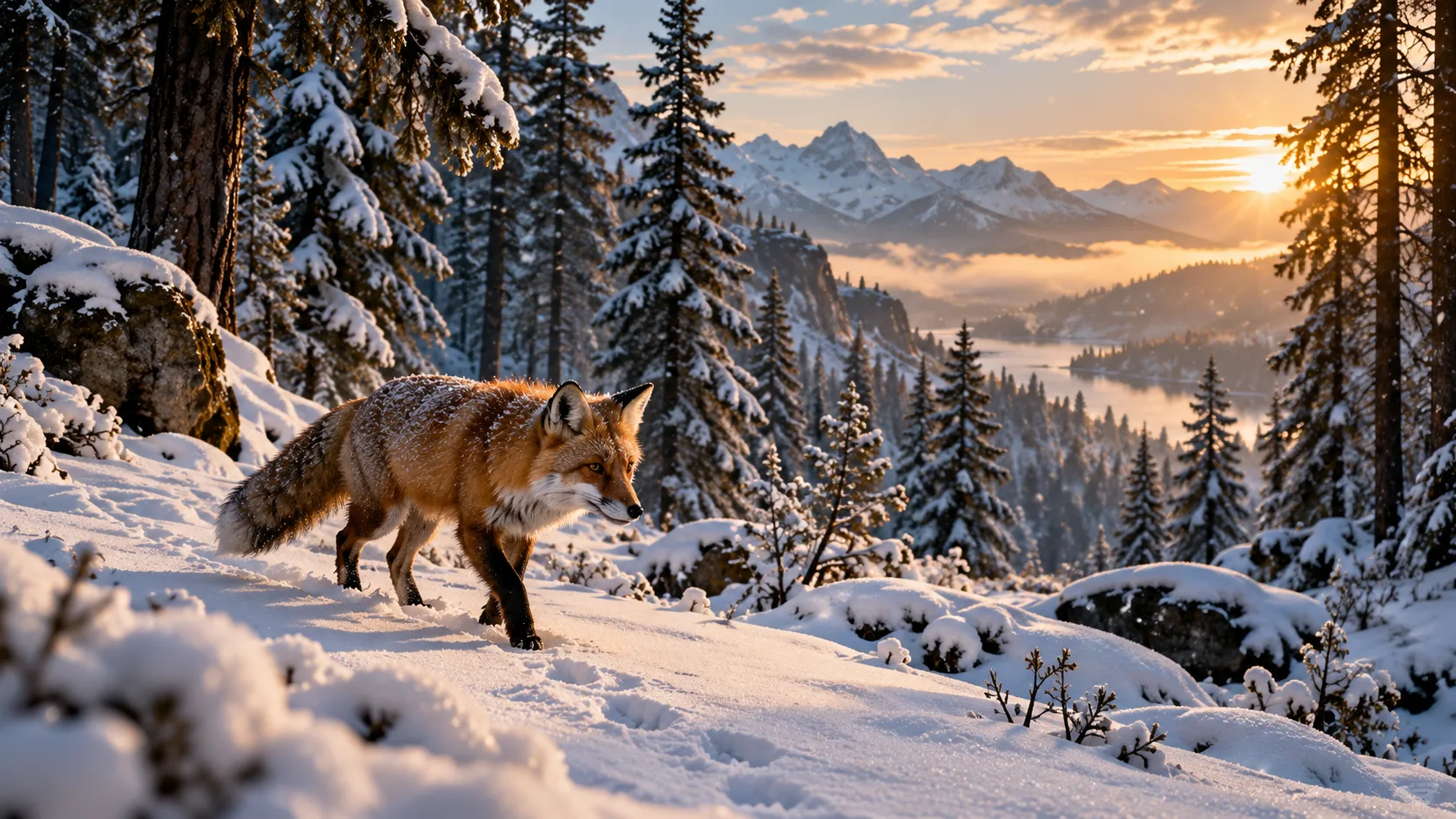
Illustrative concept for ai video editor using an image reference
Original illustrative concept visual generated for the AI Video Editor page; it is not a generated video or verified model output.

Starting point

Prepare a visual reference

Choose a still frame that shows the subject and setting to reinterpret. The video workspace accepts images rather than an existing video timeline.

  • Scene restyling and visual alternatives for a separate editing workflow.
  • An image reference and a focused lighting change help define a new shot; existing footage and its timing are not preserved automatically.

Shot brief

Neon street scene variation

An image reference and a focused lighting change help define a new shot; existing footage and its timing are not preserved automatically.

  • Example brief: “Use the uploaded street image as a visual reference. Create a new night scene with cyan and magenta reflections on wet pavement, one person walking slowly, and a steady medium camera view. No lettering.”
  • Use one principal action and a camera direction to keep the shot easy to review.

Output settings

Check the active model controls

Choose a model and provider that support this image input mode. Duration, aspect ratio, resolution, and audio options are limited to the values shown in the generator.

  • Choose a compatible reference mode and review the generated scene. Arrange clips, trim timing, and add titles in a separate video editor.
  • Review the active options and credit estimate before submitting.

Quality check

Review the complete clip

Generated motion can change framing or fine details. Review the entire clip against the shot brief before using it.

  • Check motion, framing, subject details, readable text, and audio when enabled.
  • Compare the result with the neon street scene variation brief before using it in finished work.

From input to reviewed clip

How to use AI Video Editor in Image3

Use the neon street scene variation as a planning reference, then confirm that the selected provider supports your input mode.

  1. 01

    Prepare a visual reference

    Choose a still frame that shows the subject and setting to reinterpret. The video workspace accepts images rather than an existing video timeline.

  2. 02

    Describe the revised scene

    State the lighting, atmosphere, and visible action to change. Keep the camera direction simple and specify the subject details to review.

  3. 03

    Generate and assemble the edit

    Choose a compatible reference mode and review the generated scene. Arrange clips, trim timing, and add titles in a separate video editor.

  4. 04

    Review and refine the clip

    Generated motion can change framing or fine details. Review the entire clip against the shot brief before using it.

Image3 Pricing & Credit Packs

Choose a monthly plan, save 50% with annual billing, or add credits with a one-time pack.

Save 50%

Basic

Great for getting started

$19$9.50/month
$228$114 billed yearly2,400 credits/year

Auto-renews · Cancel anytime


Includes

  • AI Image Generation & Editing
  • GPT Image 2 & Nano Banana 2
  • Watermark-free downloads
  • All style templates included
  • Priority generation queue
  • Basic customer support
  • Early roll-out of new features
  • Commercial Use License
Popular
Save 50%

Pro

Best for regular creation

$39$19.50/month
$468$234 billed yearly12,000 credits/year

Auto-renews · Cancel anytime


Includes

  • AI Image Generation & Editing
  • GPT Image 2 & Nano Banana 2
  • Watermark-free downloads
  • All style templates included
  • Priority generation queue
  • Priority customer support
  • Early roll-out of new features
  • Commercial Use License
Best Value
Save 50%

Max

Built for high-volume production

$99$49.50/month
$1,188$594 billed yearly36,000 credits/year

Auto-renews · Cancel anytime


Includes

  • AI Image Generation & Editing
  • GPT Image 2 & Nano Banana 2
  • Watermark-free downloads
  • All style templates included
  • Highest priority generation
  • Priority customer support
  • Early roll-out of new features
  • Commercial Use License

Common questions

AI Video Editor FAQ

Explore AI Video Editor in Image3

An image reference and a focused lighting change help define a new shot; existing footage and its timing are not preserved automatically. Choose a supported input mode, review the current controls and credit estimate, then create a draft in the video workspace.